
Pixel art sticker style
Create Crisp Pixel Art Stickers
Pixel stickers feel intentional when every shape respects the same grid. A small palette and strong silhouette matter more than extra detail.
Pixel workflow
Use the style library to control pixel density before adding more detail.
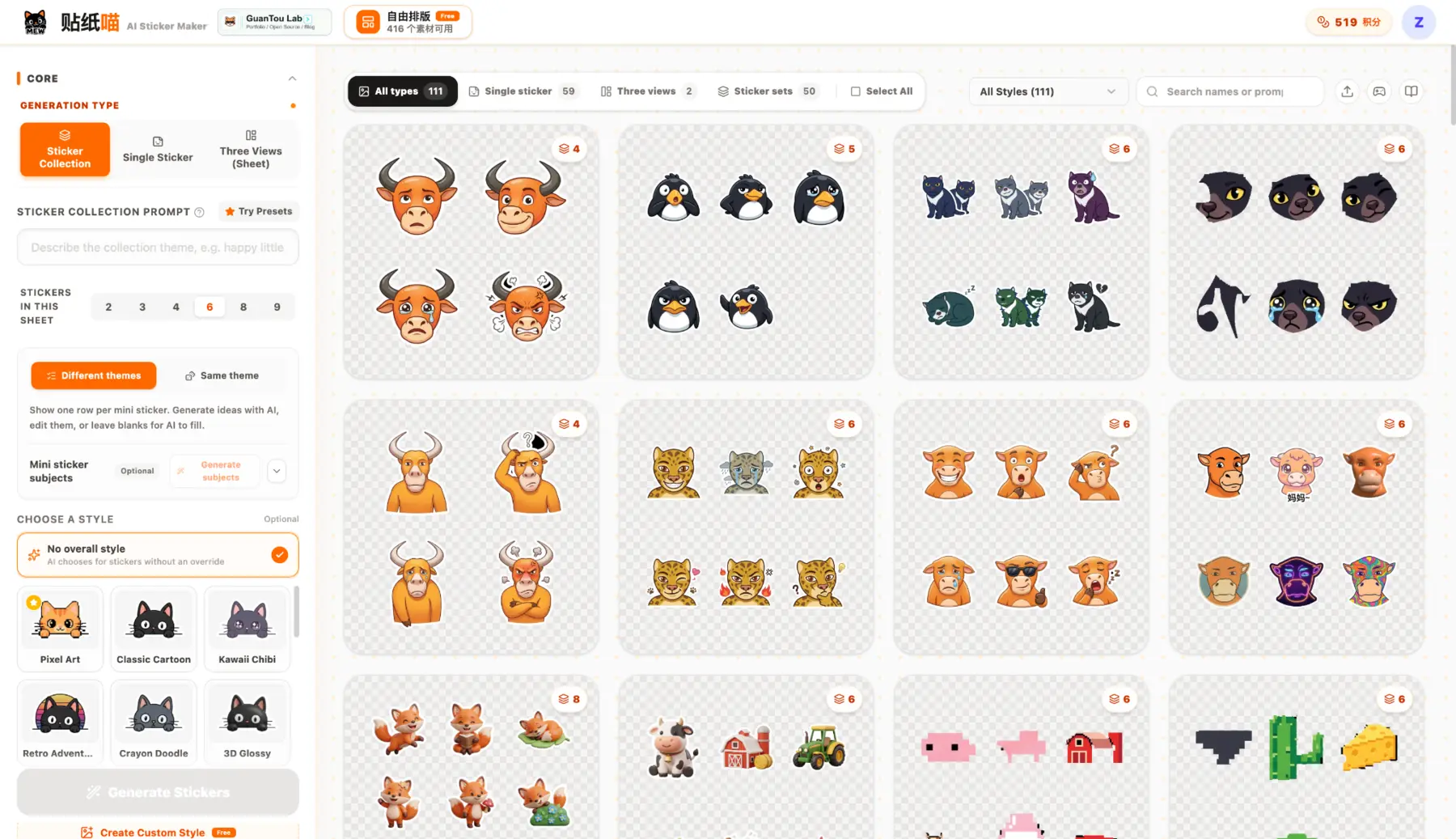
Seeing pixel results beside illustrated and 3D packs makes inconsistent scale easier to spot.
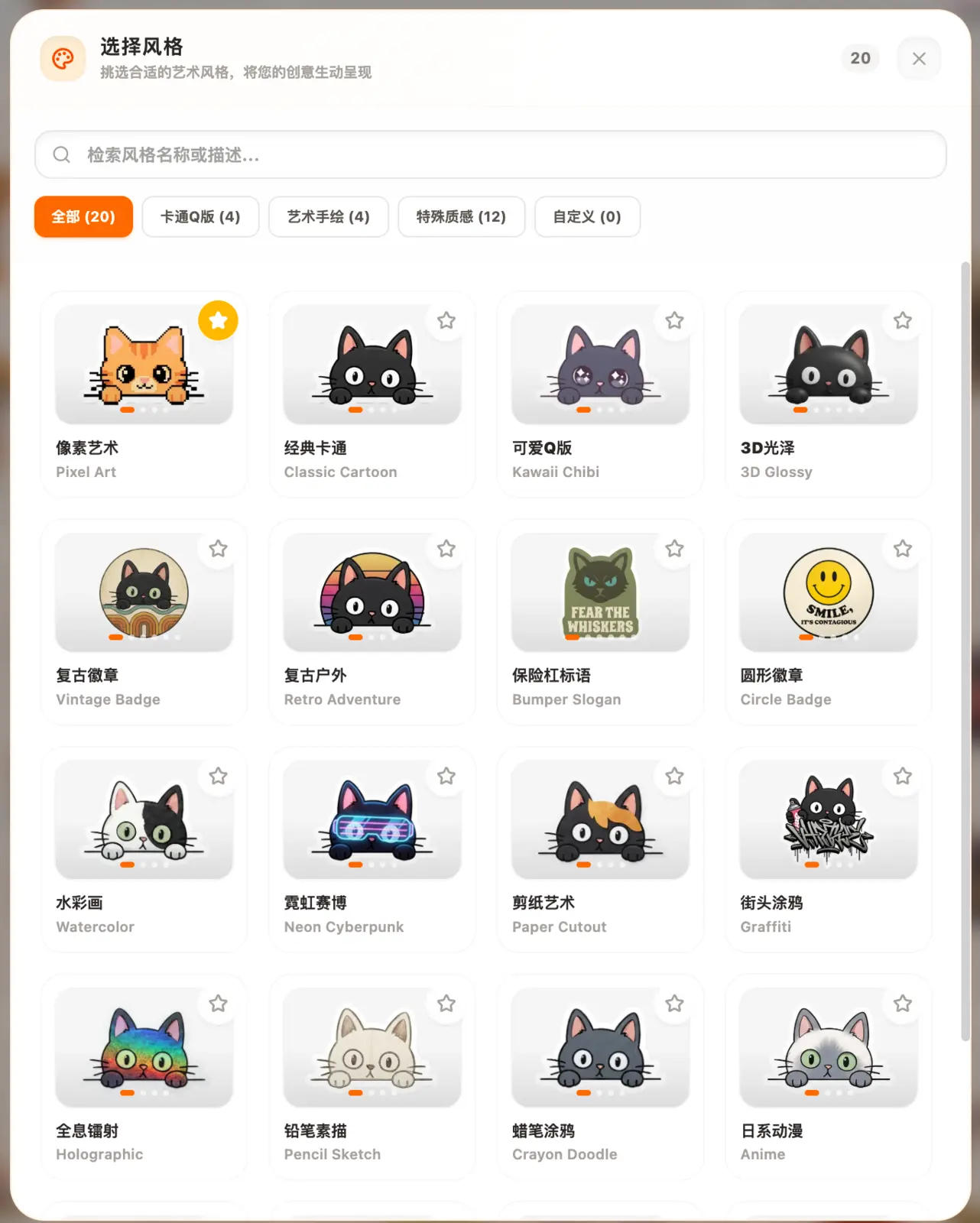
A dedicated style preset gives the generator a clearer constraint than adding the word pixel at the end of a prompt.
Simple process
How to get a cleaner result
- 01
Choose a pixel scale
Ask for one consistent pixel density so the set does not mix chunky and fine-grained rendering.
- 02
Limit the palette
Use a compact color system with clear light, midtone, shadow, and outline roles.
- 03
Export without smoothing
Keep nearest-neighbor scaling so enlarged stickers preserve crisp pixel edges.
What you get
A practical path from idea to usable files.
- Consistent pixel density
- Compact retro color palettes
- Readable small-size silhouettes
- Transparent PNG output
Common questions
Before you start
Why do pixel stickers sometimes look blurry?
Blur usually comes from smooth image scaling. Pixel art should be resized by whole-number multiples with smoothing disabled.
How many colors should I use?
A compact palette of roughly eight to sixteen colors is a practical starting point for a coherent small sticker set.
Can pixel stickers have transparent backgrounds?
Yes. Transparent PNG keeps the crisp subject edge and works over different backgrounds.
Make the first version