
Step-by-step guide
How to Make Stickers From Photos
A strong photo sticker starts before the background is removed. The source image, crop, edge treatment, and final size all affect how polished the result feels.
Simple process
How to get a cleaner result
- 01
Pick one clear subject
Use a well-lit photo with visible edges. Avoid motion blur and important details cropped by the frame.
- 02
Remove the background
Inspect hair, fur, hands, and narrow gaps. These areas usually need the most attention.
- 03
Add visual separation
A white or colored border keeps the subject readable over different chat and layout backgrounds.
- 04
Export the right file
Use transparent PNG for digital stickers and retain a high-resolution source for future print use.
Editing workflow
A clean cutout is the beginning, not the end, of a finished sticker.
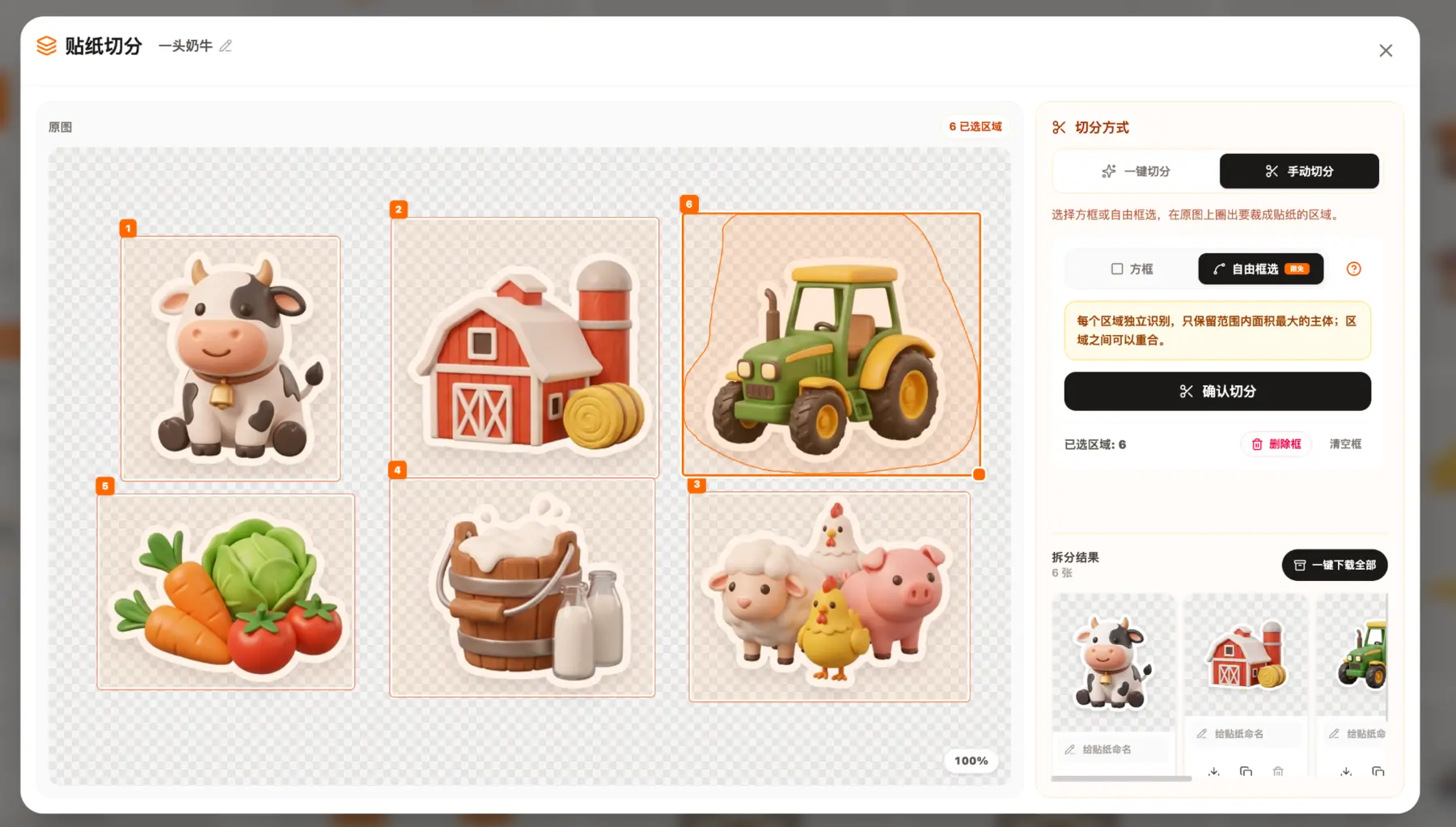
Use automatic detection first, then redraw only the regions that need manual control.

Brush and eraser controls make small corrections possible before the transparent export.

Control hierarchy, outline, and placement so text stays legible at sticker size.
What you get
A practical path from idea to usable files.
- A reusable workflow for any subject
- Cleaner edges and more readable silhouettes
- Correct transparent export
- Fewer manual editing steps
Common questions
Before you start
Do photo stickers need a white outline?
Not always, but an outline usually improves contrast and gives separate stickers a consistent visual system.
Which file format should I use?
Transparent PNG is the safest general-purpose format because it preserves clean edges without a background.
How large should the source photo be?
Start with the largest sharp version available. It is easier to scale a clean image down than to recover missing detail.
Make the first version